If you want to run your existing ASP.NET 1.1 websites under .NET Framework v1.1 please read this post Configuring .NET Framework 1.1 on windows vista and follow the below steps.
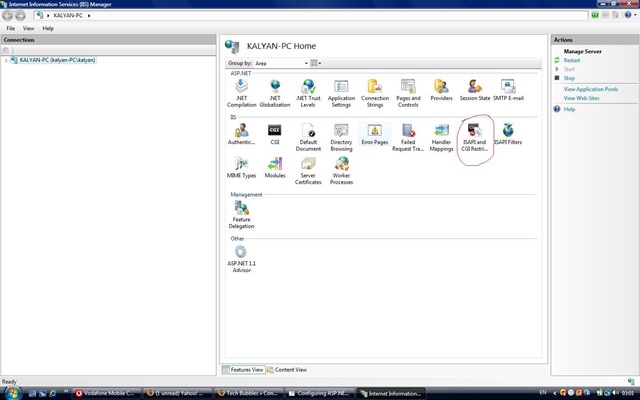
1. Open IIS 7 by going through Control Panel/Administrative Tools and please select the ISAPI and CGI Restrictions option from IIS section.
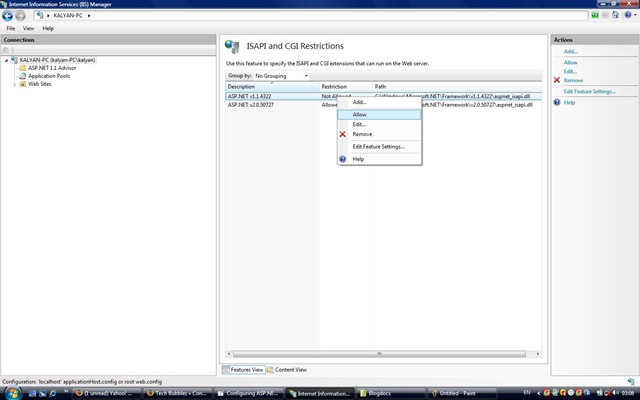
2. Allow the ASP.NET 1.1 in the ISAPI/CGI restrictions.
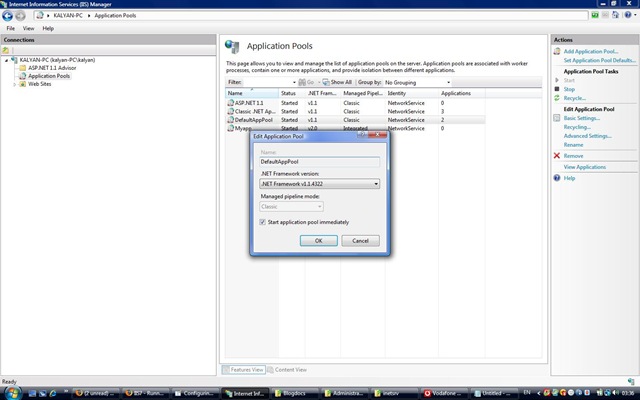
3. Make sure that your application pool should run in a 32-bit mode + v1.1 + classic mode.
Below are the commands using appcmd.exe tool which would do this.
appcmd.exe can be found under C:\Windows\System32\inetsrv.
- appcmd apppool set /apppool.name:â€ASP.NET 1.1†/enable32BitAppOnWin64:true
- appcmd apppool set /apppool.name:"ASP.NET 1.1" /managedRuntimeVersion="v1.1"
- appcmd apppool set /apppool.name:"ASP.NET 1.1" /managedPipelineMode:"Classic"
- appcmd apppool set /apppool.name:"ASP.NET 1.1" /autoStart:true (optional)
4. Alternatively you can also use this option to run your application pool under .NET FW v1.1


Configuring ASP.NET 1.1 websites on IIS 7.0…
You’ve been kicked (a good thing) – Trackback from DotNetKicks.com…